Creating choropleth maps
choropleth_maps.RmdIntroduction
Choropleth or thematic maps visualise the variation in the values of a variable across geographical areas by encoding them in a colour gradient. Alternative graphics such as a bar or lollipop chart could be used to show the data but they lack potentially important spatial information. A choropleth map allows you to begin to identify hotspot areas and clusters of high or low values.
However, there are three key issues to consider before choosing to display your data in a choropleth map.
1.Counts or rates
Choropleth maps that visualise the distribution of counts are sensitive
to population size. The population distribution will be mapped rather
than the variable of interest. It is therefore recommended to map rates
or percentages so that the population at risk is accounted for.
2.Modifiable Areal Unit Problem
The Modifiable Areal Unit Problem or MAUP (Openshaw, 1984) points out
that the spatial distribution of values in a choropleth map may be a
function of the size and shape of geographical areas. There is not much
that we can do about MAUP but we need to be aware of its potential
impact.
3.Classification schemes
Different classification schemes can produce very different choropleth
maps (see below). As the distibution of a histogram is sensitive to the
size of its bins so the spatial distribution visualised in a choropleth
map can be affected by its intervals. It is good practice to inspect the
values of your variable in a histogram before deciding which
classification scheme to adopt.
Getting started
The main package that we will be using to create choropleth maps is the tmap package. To install the package you can run:
install.packages("tmap")We will also be using the sf package to load spatial data, RColorBrewer for colour palettes and dplyr for data manipulation.
Sourcing geospatial data
Subnational administrative boundaries are available from two sources: GADM and Natural Earth. The data are free to use for non-commercial purposes.
GADM
You can either download administrative boundary files using the geodata
package or directly from the GADM
website. The function gadm() has two key arguments. You
need to supply the three-letter ISO code to
country and choose a level of administrative
subdivision. 0 is the value for country and 1 is for the next
administrative level down.
The code below loads the states of Nigeria.
If you prefer to download the files manually from the website you need to select ‘Nigeria’ from the country dropdown and then choose a file format. GeoJSON is an open, non-proprietary format that is used across the Web. There are three administrative divisions available:
0 National
1 States (36 + Federal Capital Territory)
2 Local Government Areas (774)
We will download ‘level 1’ in GeoJSON format by copying the URL and
unzipping it. We can then use the st_read() function from
the sf package to load the file into the R session. The
sf package converts the GeoJSON file into a simple features object, a
data frame with features stored in rows and attributes in columns. The
feature geometries of the object are stored in a list-column at the end.
These are the coordinates that describe the boundary of each state.
download.file("https://geodata.ucdavis.edu/gadm/gadm4.1/json/gadm41_NGA_1.json.zip",
              "gadm41_NGA_1.json.zip")
unzip("gadm41_NGA_1.json.zip")
nigeria <- st_read("gadm41_NGA_1.json")
Natural Earth
Level 1 administrative boundaries are available from Natural Earth using the
ne_states() function from the rnaturalearth
package.
library(rnaturalearth)
nigeria <- ne_states(country = "nigeria", returnclass = "sf")
You can also download subnational boundaries directly from the Natural Earth website. If you scroll down to ‘Admin 1 – States, Provinces’ you can download the ESRI shapefile of first-order administrative boundaries for a number of countries. To obtain the states of Nigeria we need to filter the results by the ISO code.
download.file("https://www.naturalearthdata.com/http//www.naturalearthdata.com/download/10m/cultural/ne_10m_admin_1_states_provinces.zip", "ne_10m_admin_1_states_provinces.zip")
unzip("ne_10m_admin_1_states_provinces.zip")
nigeria <- st_read("ne_10m_admin_1_states_provinces.shp") |>
  filter(adm0_a3 == "NGA")
Loading geospatial data
On loading with st_read(), the R console prints out the
number of features, the geometry type, dimensions, bounding box, and
coordinate reference system (CRS). We can confirm that there are 37
features (states) and that the vector boundary layer is projected in the
World Geodetic System 1984 (WGS84), with longitude and latitude units of
decimal degrees.
nigeria <- st_read("data/nigeria.geojson")
#> Reading layer `nigeria' from data source
#>   `/home/runner/work/crvsreportpackage/crvsreportpackage/vignettes/data/nigeria.geojson'
#>   using driver `GeoJSON'
#> Simple feature collection with 37 features and 1 field
#> Geometry type: MULTIPOLYGON
#> Dimension:     XY
#> Bounding box:  xmin: 2.671082 ymin: 4.272162 xmax: 14.66994 ymax: 13.88029
#> Geodetic CRS:  WGS 84
We can visualise the state boundaries using the base R
plot() function. We just need to supply the
geometry column.
plot(nigeria$geometry)
Plotting in tmap
We can also use the tmap package to plot the state
boundaries. Combining the tm_shape() and
tm_borders() functions renders the outlines of each
state.
tm_shape(nigeria) +
  tm_borders()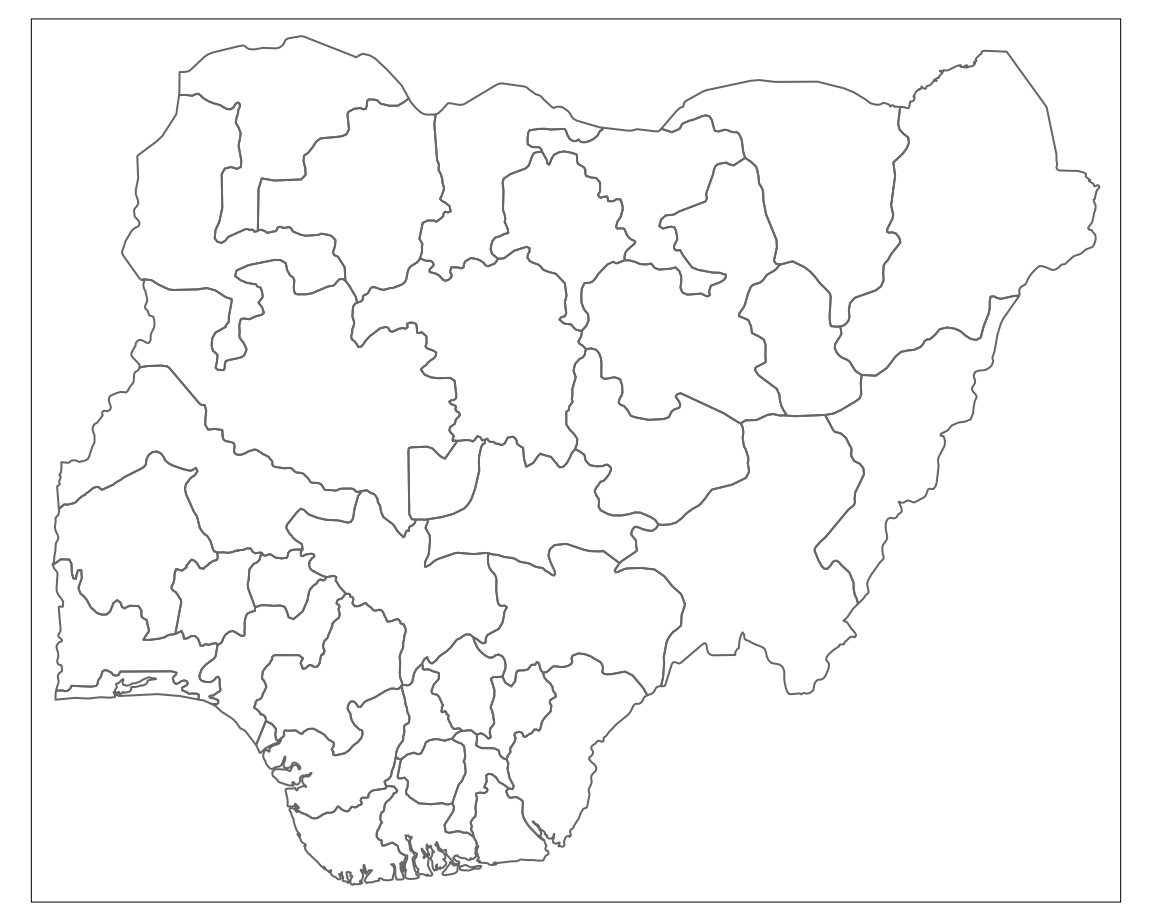
Style borders
The borders can be styled by passing col (colour) and
lwd (border line width) arguments to the tm_borders()
function.
tm_shape(nigeria) +
  tm_borders(col = "#000000", lwd = 0.5)
Labelling
Each state can be labelled using the tm_text()
function. Again, we supply various arguments to style the labels. The
argument auto.placement ensures that labels don’t sit on
top of each other.
tm_shape(nigeria) +
  tm_borders(col = "#000000", lwd = 0.5) +
  tm_text("state",
          size = 0.8,
          col = "black",
          auto.placement = TRUE)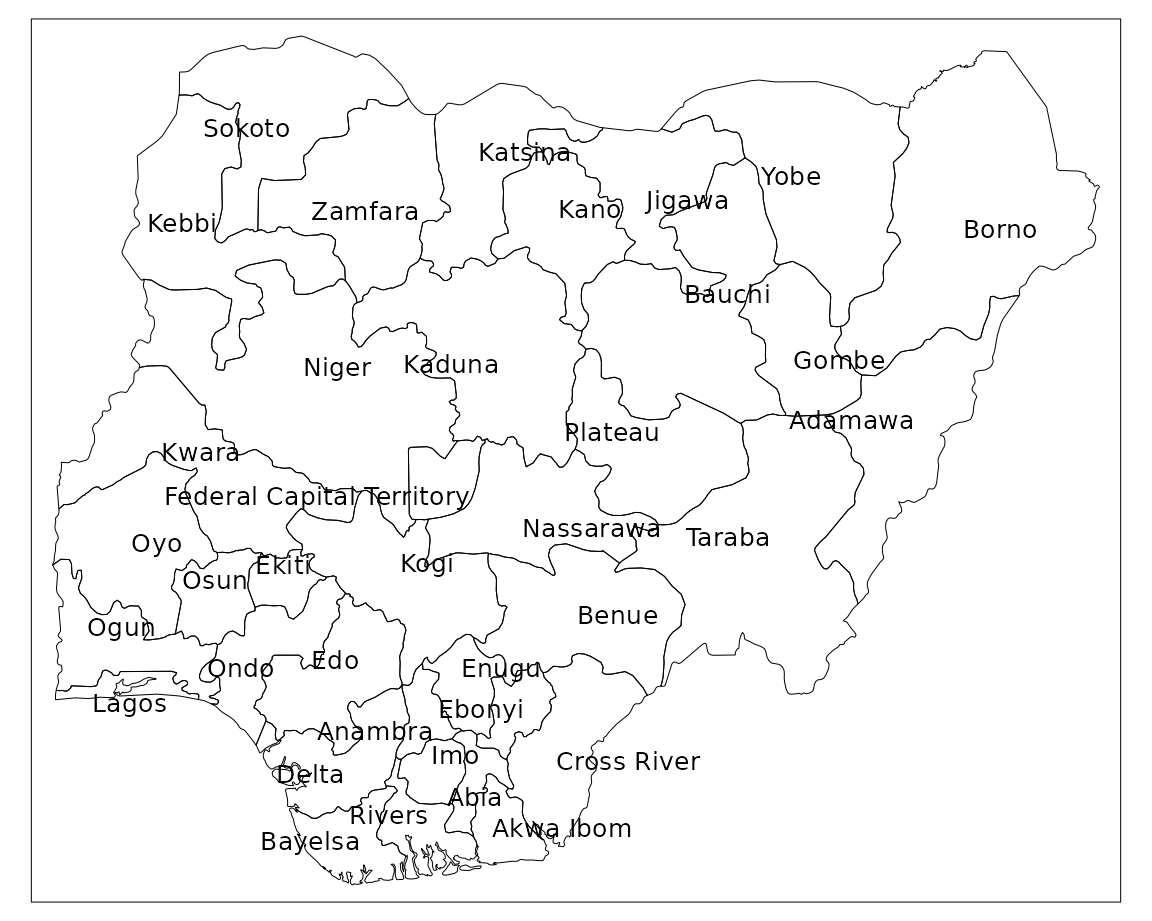
If you want to only label specific states you can use a filter.
tm_shape(nigeria) +
  tm_borders(col = "#000000", lwd = 0.5) +
  tm_shape(nigeria |> filter(state %in% c("Federal Capital Territory","Jigawa","Lagos","Sokoto"))) +
  tm_text("state", size = 0.8, col = "black", auto.placement = TRUE)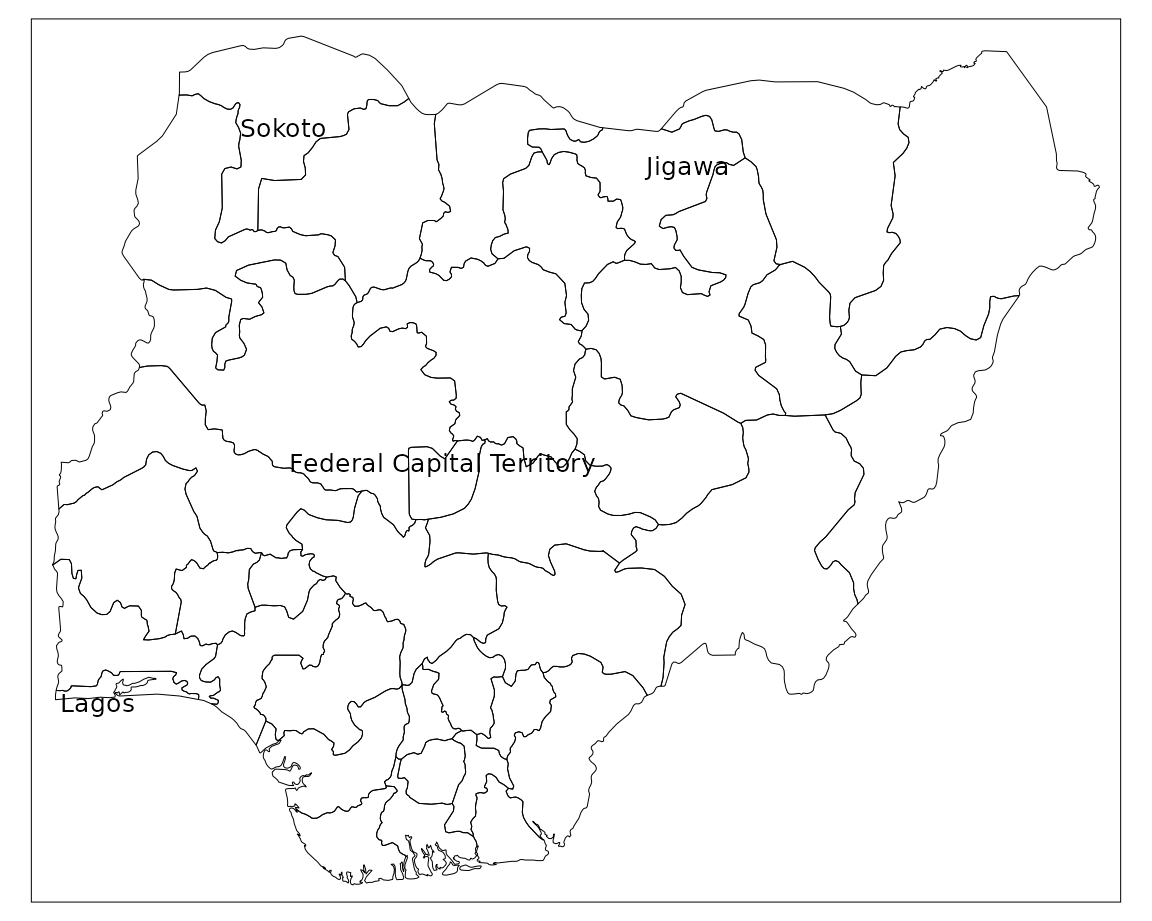
Joining data
We have the boundaries of each state in Nigeria but we need some statistical data to create a choropleth map. We will be using data provided by the 2021 Nigeria Multiple Indicators Cluster Survey (MICS) on the percentage of children under age 5 whose births are registered by each Nigerian state.
head(df)
#> # A tibble: 6 × 2
#>   state     percent
#>   <chr>       <dbl>
#> 1 Abia         66.8
#> 2 Adamawa      79.7
#> 3 Akwa Ibom    72.1
#> 4 Anambra      86.5
#> 5 Bauchi       38.3
#> 6 Bayelsa      28.2
Both our spatial data and our birth registration data share a matching state variable which we can use to join the datasets. To check that all of the state names are consistent between datasets we can run an anti join.
anti_join(nigeria, df, by = "state")
#> Simple feature collection with 1 feature and 1 field
#> Geometry type: MULTIPOLYGON
#> Dimension:     XY
#> Bounding box:  xmin: 6.749594 ymin: 8.404707 xmax: 7.628196 ymax: 9.351419
#> Geodetic CRS:  WGS 84
#>                       state                       geometry
#> 1 Federal Capital Territory MULTIPOLYGON (((6.978107 8....
We can see that the ‘Federal Capital Territory’ in the spatial data has no match in the birth registration data. This is because the state is recorded as ‘FCT Abuja’ in the other dataset. We can fix this by recoding the state name in the spatial data.
nigeria <- nigeria |>
  mutate(state = case_when(
    state == "Federal Capital Territory" ~ "FCT Abuja",
    TRUE ~ state)
    )
We can now run the left_join() function to join the two
datasets together.
sf <- left_join(nigeria, df, by = "state")When left_join() fails to find a match it enters a
missing value in the corresponding row. We can therefore check that the
join has worked by filtering out any missing values.
filter(sf, is.na(percent))
#> Simple feature collection with 0 features and 2 fields
#> Bounding box:  xmin: NA ymin: NA xmax: NA ymax: NA
#> Geodetic CRS:  WGS 84
#> [1] state    percent  geometry
#> <0 rows> (or 0-length row.names)
Now we are ready to create a choropleth map.
Basic choropleth
The tm_polygons()
function creates an off-the-shelf choropleth map. You just supply the
name of the variable that you want to visualise to col and
a title for the legend.
tm_shape(sf) +
  tm_polygons(col = "percent",
              title = "% registered")
To have finer control over the choropleth map it is better to use a
combination of tm_borders() and tm_fill().
This allows us to style the borders.
tm_shape(sf) +
  tm_borders(col = "#FFFFFF", lwd = 0.5) +
  tm_fill(col = "percent", title = "% registered")
The default colour palette is orange and the map classification is ‘pretty’. We can change these next.
Colour palettes
tmap uses colour palettes from the ColorBrewer website which differ
depending on the chosen sequential, diverging, or
categorical colour scheme. If we wanted to show how the birth
registration values are spread around the mean we could use colour
palettes for a diverging scheme. However, we will use a palette
from the sequential colour scheme because we want to visual the
distribution of values from low to high. Here we will use the “Blues”
palette which visualises low values as light blue and high values as
dark blue.
tm_shape(sf) +
  tm_borders(col = "#FFFFFF", lwd = 0.5) +
  tm_text("state", size = 0.8, col = "black", auto.placement = TRUE) +
  tm_fill(col = "percent",
          palette = "Blues",
          title = "% registered")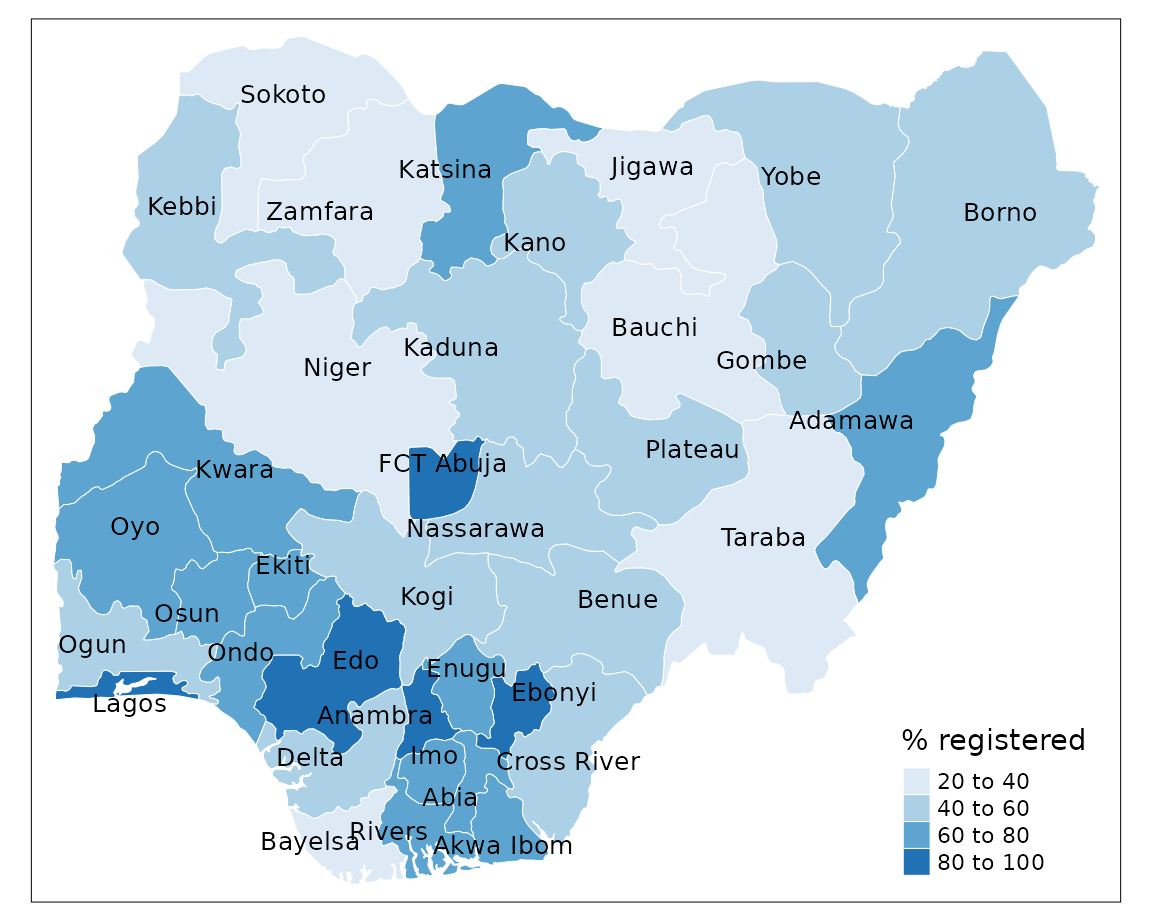
Classes
When map classification breaks are not set explicitly tmap defaults
to style = "pretty". This is a base R function
which calculates roughly equal spaced round values. However, tmap has a
number of other map classification schemes to choose from.
Equal interval
Divides the distribution of values so that the range of values is identical within each class. The difference between the highest and lowest value is the same for each class grouping.
+ represents the density of observations around the
mean
- maps tend to be unbalanced because the values aren’t
evenly distributed.
tm_shape(sf) +
  tm_borders(col = "#FFFFFF", lwd = 0.5) +
  tm_text("state", size = 0.8, col = "black", auto.placement = TRUE) +
  tm_fill(col = "percent",
          style = "equal",
          n = 4,
          palette = "Blues",
          title = "% registered")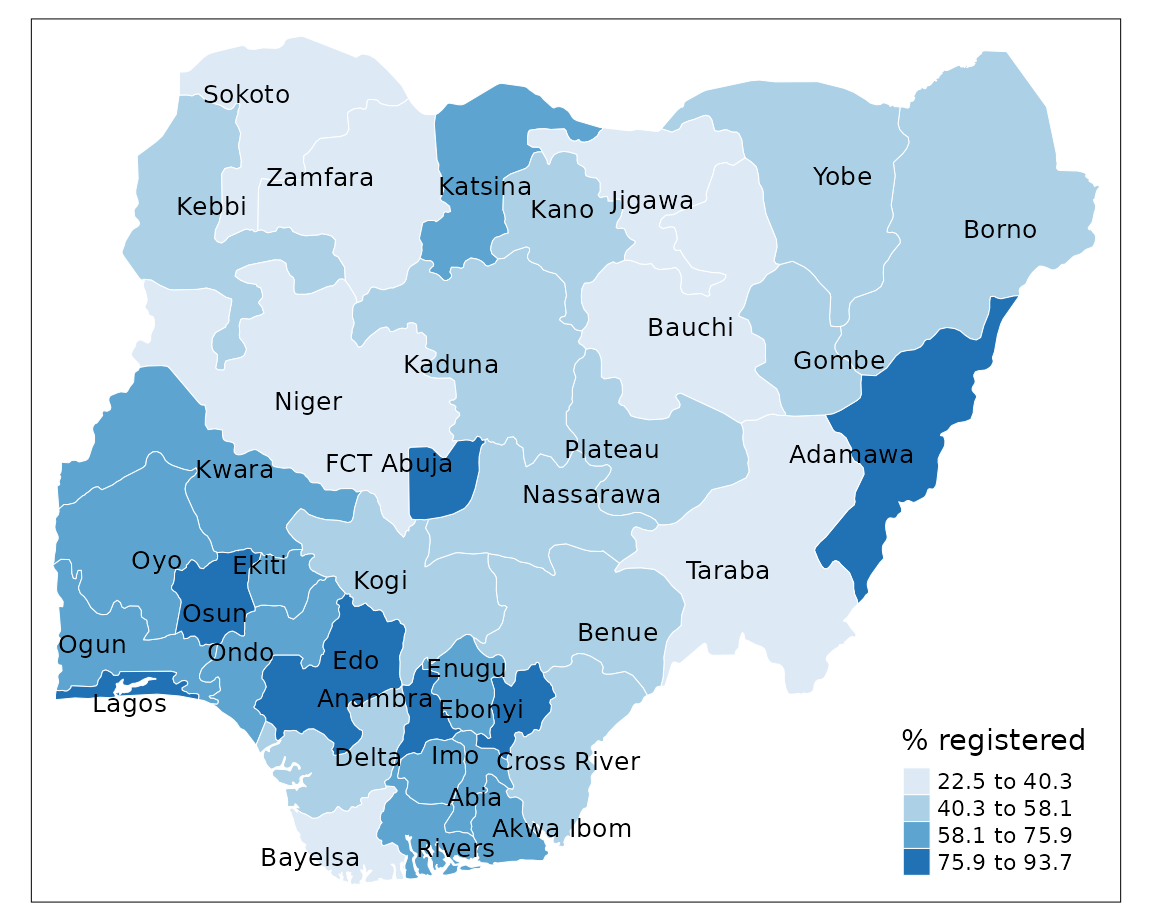
Quantile
Sorts the values of a variable in ascending order and assigns an equal number of geographical areas to each colour.
+ highlights a proportion of observations such as
the top 25% of geographical areas
- tends to mask heterogeneity
tm_shape(sf) +
  tm_borders(col = "#FFFFFF", lwd = 0.5) +
  tm_text("state", size = 0.8, col = "black", auto.placement = TRUE) +
  tm_fill(col = "percent",
          style = "quantile",
          n = 4,
          palette = "Blues",
          title = "% registered")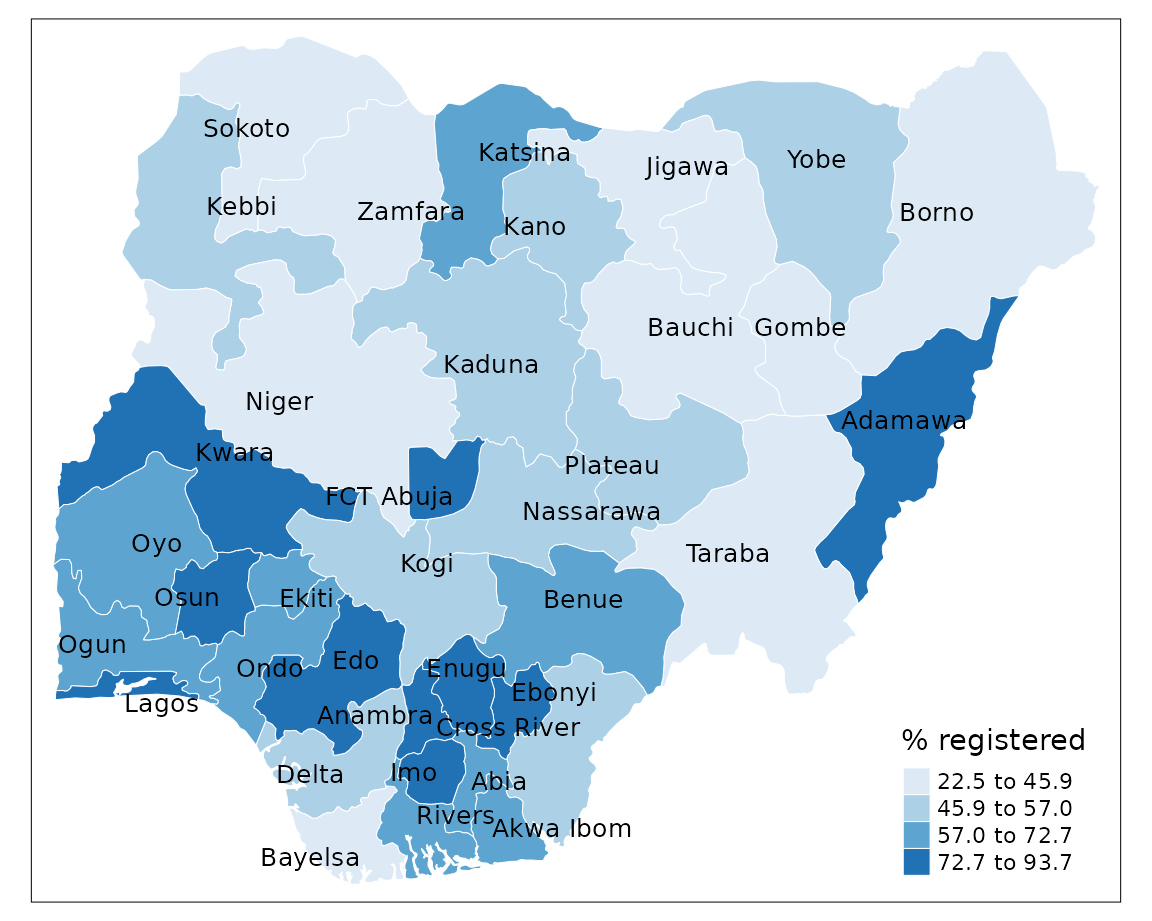
Natural breaks (jenks)
Class categories are based on natural groupings in the data. Uses a statistical procedure which seeks to reduce the variance within classes and maximises the variance between classes.
+ identifies areas with similar values
- the classes are unique to each variable so cannot be
reused with other variables
tm_shape(sf) +
  tm_borders(col = "#FFFFFF", lwd = 0.5) +
  tm_text("state", size = 0.8, col = "black", auto.placement = TRUE) +
  tm_fill(col = "percent",
          style = "jenks",
          n = 4,
          palette = "Blues",
          title = "% registered")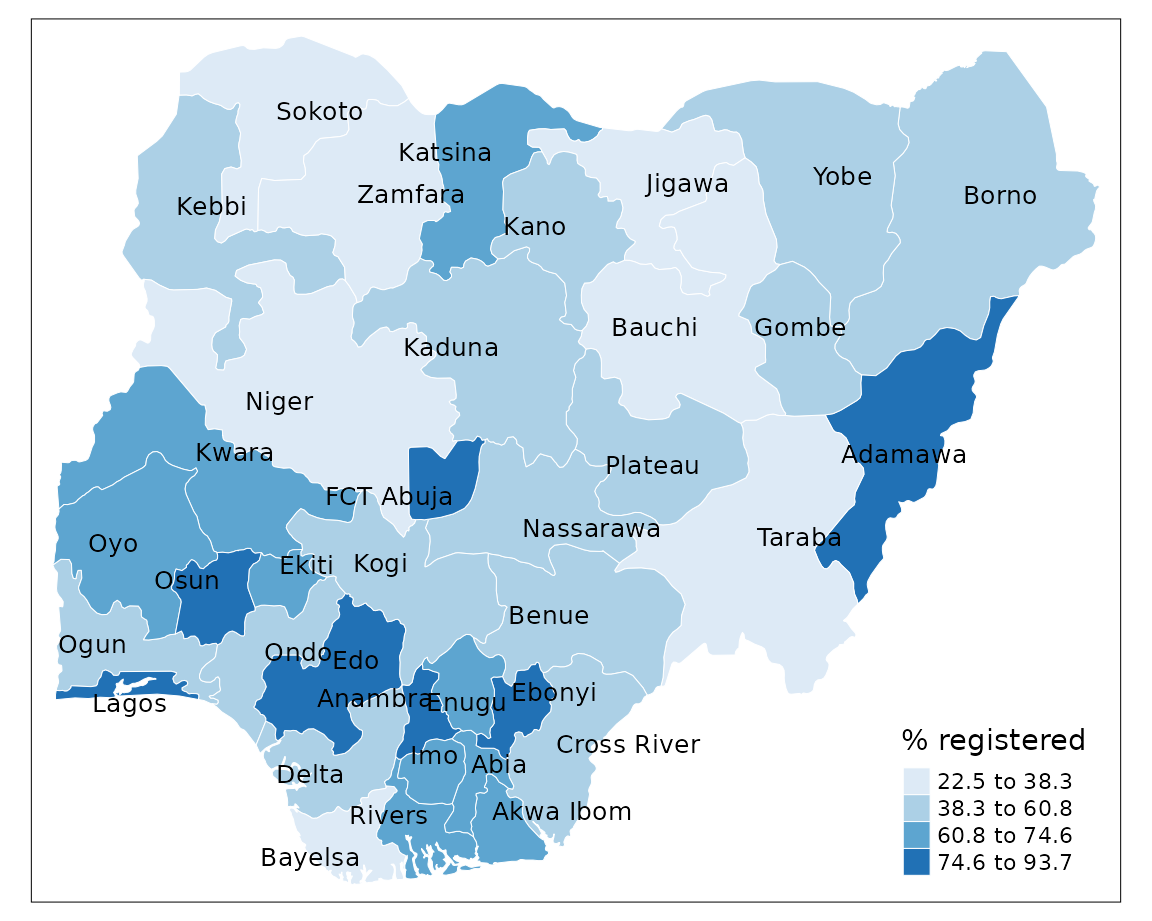
Custom breaks
Custom map classifications can be created by supplying
breaks and labels to the
tm_fill() function.
tm_shape(sf) +
  tm_borders(col = "#FFFFFF", lwd = 0.5) +
  tm_text("state", size = 0.8, col = "black", auto.placement = TRUE) +
  tm_fill(col = "percent",
          breaks = c(0,40,58,76,Inf),
          palette = "Blues",
          labels = c(" < 40%", " 40 - 58%", " 58 - 76%", " > 76%"),
          title = "Total registered")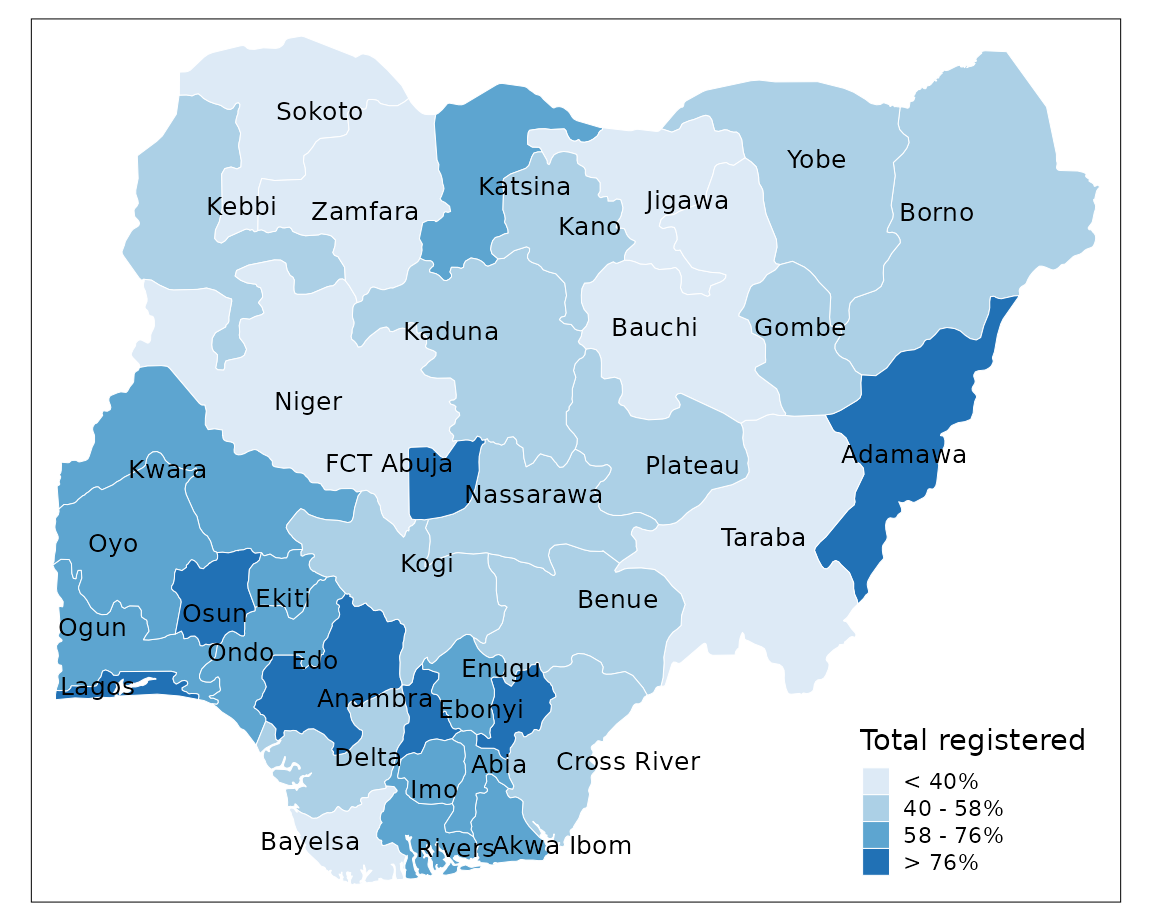
Customisation
There are several improvements we can make to the choropleth map by changing the layout, adding titles and tweaking the legend.
tm_shape(sf) +
  tm_borders(col = "#FFFFFF", lwd = 0.5) +
  tm_text("state", size = 0.6, col = "black", auto.placement = TRUE) +
  tm_fill(col = "percent", title = "% registered", style = "jenks", n = 4, palette = "Blues") +
  tm_layout(frame = FALSE,
            main.title = "Levels of birth registration in Nigeria",
            main.title.size = 1.2,
            legend.outside = TRUE) +
  tm_credits("Source: MICS, 2021",
             bg.color = "white",
             position = c("right", "bottom"))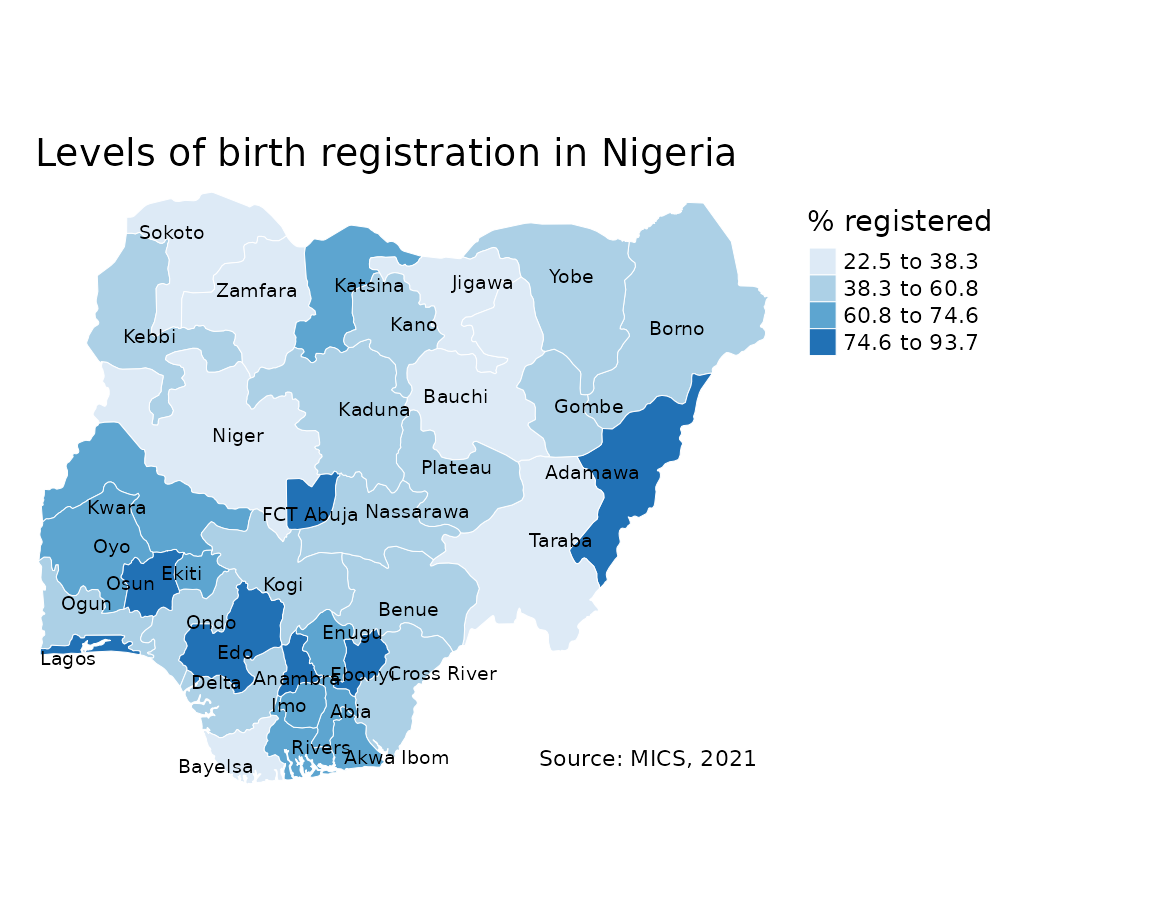
You can also add in some cartographic elements such as a compass rose
(tm_compass())
or scale bar (tm_scale_bar())
if required.
Interactivity
The tmap package also allows you to view your maps
interactively. All you need to do is to switch between
tmap_mode("view") for interactive viewing and
tmap_mode("plot") for static plots.
tmap_mode("view")You can change the transparency of the colour fill by changing the
alpha argument in tm_fill() when viewing
interactively.
Exporting maps
To export static maps you can use the tmap_save()
function. Just save your plot as an object and give it a
filename.
tm <- tm_shape(sf) +
  tm_borders(col = "#000000", lwd = 0.5) +
  tm_text("state", size = 0.8, col = "black", auto.placement = TRUE) +
  tm_fill(col = "percent",  style = "jenks", n = 4, palette = "Blues", title = "% registered", alpha = 0.3)

tmap_save(tm, filename = "nigeria.png")
Further resources
- Anselin, Luc (2016). Statistical Maps: Standard Deviation and Box Map. YouTube. https://www.youtube.com/watch?v=6-weK5J6xRI
- Harris, Rich. (2022-2023). Mapping and Modelling Geographic Data in R. Online course.
- Lovelace, R., Nowosad, J., & Muenchow, J. (2023). Geocomputation with R. 2nd edition.
- ONS Geography. (2021). Introduction to GIS in R. Online course.
- Openshaw, S., & Openshaw, S. (1984). The modifiable areal unit problem. Geo Abstracts University of East Anglia