Pages
Pages allow you to organize indicators, map indicators and reports into logical groups that can be accessed via the navigation menu (e.g., "Housing Census", "Agriculture Pilot").
The Pages management interface allows administrators to organize dashboard content into distinct categories and views. This central hub is used to manage the lifecycle of various information layouts, including indicators, map-based views, and detailed reports.
Pages List
Pages are automatically grouped into sections such as Indicators, Map indicators, and Reports based on their primary artifact type.
Page Attributes
- Title: The display name of the page as it appears in the navigation menu (e.g., Households).
- Slug: The URL-friendly version of the title used for direct linking (e.g., households-indicators).
- Artefacts: A numerical count of individual components (charts, maps, or tables) currently assigned to that page.
- Published Status: A visual "Yes/No" badge indicating if the page is currently visible to end-users.
Management Actions
- Create New: A primary action button to initiate the creation of a new dashboard layout.
- Edit/Delete: Standard controls to modify existing page configurations or remove obsolete views.
Add Page
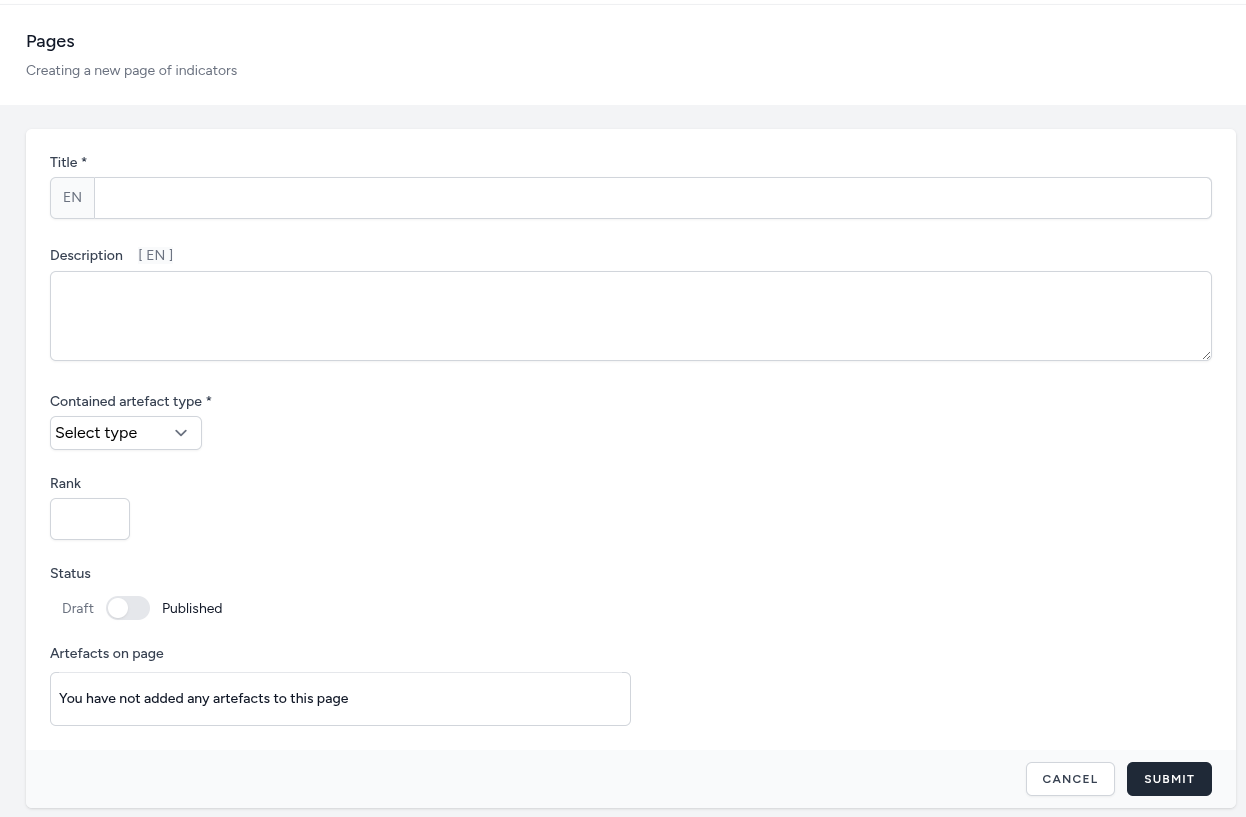
The Add Page form is the primary tool for designing the dashboard’s structure. It allows administrators to create custom containers for data visualizations and determine exactly which components appear on a specific page.
Core Identity and Metadata
This section defines the basic properties of the page for navigation and display purposes.
-
Title: The official name of the page as it will appear in the dashboard menus (e.g., Demographic Trends). This field supports multi-language entry for localized environments.
-
Description: An optional field used to provide internal notes or public-facing summaries regarding the data contained on the page.
-
Rank: A numerical field that determines the page’s specific position in the navigation menu. A lower number places the page higher in the list.
Functional Categorization
- Contained Artefact Type: A critical dropdown menu that defines the primary purpose of the page. You must select whether this page will host Indicators (standard charts), Map Indicators (geographic views), or Reports (tabular data).
Content and Lifecycle Management
-
Status Toggle (Draft vs. Published): Controls the visibility of the page.
-
Draft: The page remains invisible to general users, allowing for safe editing and testing.
-
Published: The page is live and accessible via the dashboard navigation.
-
-
Artefacts on Page: This dynamic section displays a list of all visual components (charts, gauges, or maps) currently assigned to this page. When populated, you will also be able to re-order the artefacts on the page by using the arrow buttons on the right side.
- If no components have been linked yet, a placeholder message will confirm that the page is currently empty.